Quests
Quests keep your server active with text-based challenges/submissions that reward points. Each quest now supports two modes:
- Automated – Define up to five accepted answers. Matching submissions (case-insensitive exact text) auto-approve instantly; anything else auto-rejects with guidance. Users get up to three auto-rejected resubmissions per hour.
- Manual – Leave accepted answers empty; staff approve or reject each submission.
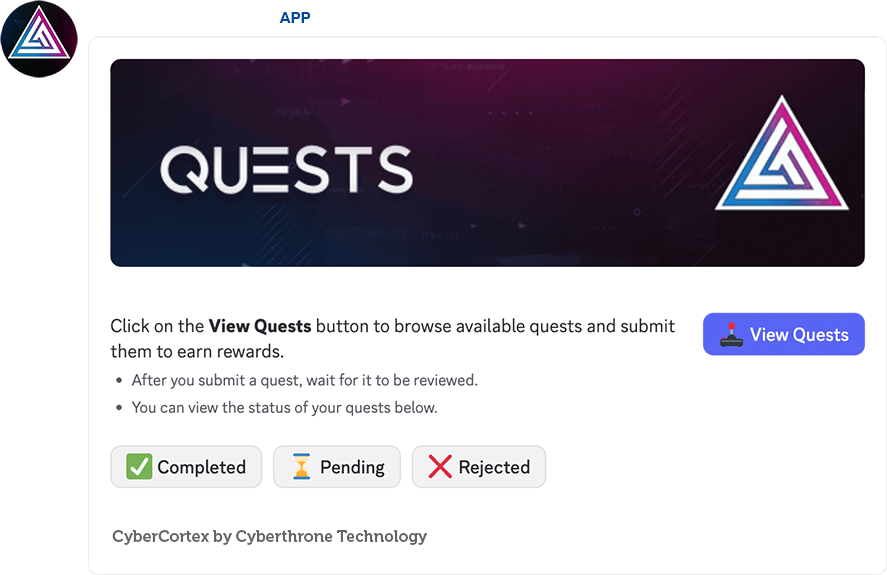
Admins manage everything via slash commands plus an interactive panel, while members submit quests via an the quest panel UI shown below.
Step 1: Place the Quests Panel UI for users
Admin Command: /quests panel
- Sends an interactive UI to a chosen text channel.
- Members can browse active quests, view pending/completed progress, and submit completions from the panel.
Step 2: Adding Quests
Command: /quests add
Options:
- Quest Name – Name of the quest.
- Quest Description – Supports
[newline]to add a line break. - Quest Reward – Points (integer).
- Allowed Role – Optional role gate; omit for @everyone.
- Max Approvals – Optional cap. Leave blank for unlimited.
By default, a newly created quest is a manual quest. You can use the Add/Update Answers button after adding the quest to set accepted answers for automated mode.
Automated Quest Details
- Accepted answers are case-insensitive exact strings.
Hello=hello, but nothelloo. - Up to five answers per quest; configure via the Add/Update modal or the post-add helper view.
- Auto approvals:
- Grant rewards immediately.
- Decrement
max_approvalsif the quest has a limit. - Notify the configured quest log channel (if set).
- Auto rejections:
- Provide detailed feedback to the user.
- Log the rejection with the reason.
- Enforce a 3-attempt-per-hour limit.
Editing & Managing Quests
Command: /quests edit
Opens an embed with buttons:
| Control | Description |
|---|---|
| Edit Quest Settings | Modal to adjust reward, max approvals (type unlimited to clear), and allowed role. |
| Add/Update Answers | Modal with five slots pre-filled with current answers. Leave a slot blank to remove; fill up to five unique answers to keep/enable automation. |
| Remove Allowed Role | Resets the quest to @everyone. |
| Refresh | Rebuilds the embed with the latest data. |

Deleting Quests
Command: /quests delete
Removes the quest and all associated submissions.
Viewing Quest Info
Command: /quests info
Displays:
- Quest name, description, reward.
- Allowed role (or @everyone).
- Remaining approvals (shows Unlimited when uncapped).
- Mode (Manual/Automated).
- Up to five accepted answers.
Autocomplete helps pick quests quickly.
To view all quests use /quests view-all
Reviewing Submissions [ADMIN]
Command: /quests review
Filters:
- Quest Name (optional)
- User (optional)
Shows pending manual submissions with Approve/Reject buttons and pagination. Automated matches never reach this queue—they’re handled instantly. Auto rejects record the reason and resubmission cooldown.
Notifications & Logs
When a quest is approved or rejected (manually or automatically), the bot posts to the configured quest logs channel with the quest name, user mention, and outcome.
Quick Reference Table
| Command | Audience | Description |
|---|---|---|
/quests panel | Admin | Deploy the Quests UI to a channel. |
/quests add | Admin | Create a new quest. |
/quests edit | Admin | Open the interactive edit panel. |
/quests info | Admin | View details for a quest. |
/quests view-all | Admin/User | List all active quests. |
/quests delete | Admin | Remove a quest + submissions. |
/quests review | Admin | Process pending manual submissions. |
/completed-quests | Admin/User | See completed quests (self or others). |
/pending-quests | Admin/User | See pending submissions. |
/rejected-quests | Admin/User | See rejected submissions + reasons. |